Your phone lasts six hours when it should last twelve? Before replacing your battery or buying a power bank, here's one thing to know: four default settings drain up to half your battery every single day. We're going to turn them off step by step, iOS and Android, with real numbers — and you'll understand exactly why it works.
01 / 04The screen, your biggest drain auto-brightness set too high and the fix
The first and most underestimated drain: your screen.
Screen = 35-45% of total battery use
According to ADEME measurements on digital device consumption, the screen alone accounts for between thirty-five and forty-five percent of total smartphone power use. And auto-brightness mode, despite its name, isn't efficient: it constantly adjusts upward to compensate for changes in ambient light, often hitting eighty percent outdoors. The right setting: you can keep auto-brightness on if you want, but add a manual ceiling. On iPhone, it's in Control Center: drag the slider below seventy percent. The sensor will adapt below that threshold without ever going full blast. On Android, go to Settings, Display, Brightness. If your phone has Adaptive brightness, leave it checked but lower the base level. If you turn it off, set manually between fifty-five and sixty percent indoors. Expected result: thirty to forty extra minutes per day under normal use.
5G: disable in weak areas → +1.5h battery life
The second biggest power consumer tied to radios: 5G. 5G isn't bad for battery by itself — but in weak coverage areas, your phone constantly boosts transmission power to maintain the signal. ANFR documents this: in mixed 4G/5G zones, an active 5G modem can use up to thirty percent more power than the same modem on pure 4G. If you're often in poorly covered areas — in transit, in rural areas, indoors underground — switch to 4G manually. On iPhone: Settings, Cellular, Cellular Data Options, then select 4G instead of 5G Auto. On Android: Settings, Network and internet, SIM, Preferred network mode, 4G/LTE. Indoors or in weak coverage areas, this can save you ninety minutes over the course of a day.
02 / 04Apps running behind your back background refresh and notifications that drain you
Second factor, invisible but constant: apps that permanently refresh in the background.
iOS: Settings > General > Background App Refresh
Every time a background app refreshes — email, social media, weather, shopping — it wakes up the processor, activates the radio, and draws a few milliamps. With twenty to fifty apps installed, these wake-ups add up to a constant drain. On iPhone, go to Settings, General, Background App Refresh. You see the complete list. My recommendation: disable the feature globally with the main toggle at the top, then re-enable only for apps that need real-time fresh data — your main messaging app, a weather app if you check it first thing. Everything else can wait until you open it. On Android, the name varies by manufacturer: Settings, Battery, Background activity or Background restriction. Find the app list and enable restriction for non-essential apps. On Samsung, it's in Device Care, Battery, Background usage limits.
Push vs Fetch: switch email to manual = +2h
Background refresh has one special case: email. In Push mode, your phone maintains a constant connection to the mail server and receives each email the second it arrives. It's convenient, but it also means a radio that's always on. In Fetch mode, your phone checks every fifteen or thirty minutes. Result: fewer radio wake-ups, less drain. On iPhone: Settings, Mail, Accounts, Fetch New Data. Switch from Push to Manually for non-urgent accounts, or select Every 30 Minutes. On Android: in your mail app, Settings, Sync, Frequency. For a secondary Gmail account, switch to thirty minutes. If your emails aren't urgent by the second — and for most of us they aren't — this single setting can give you up to two extra hours in a day.
03 / 04Location, the most forgotten setting switching from 'always' to 'while using'
Third lever, often ignored: location services.
GPS always on = melted battery
Location services are among the biggest hidden drains. Every app authorized to access your location Always keeps the GPS chip running continuously, even when your phone is in your pocket. On iPhone, go to Settings, Privacy and Security, Location Services. You see a list of all apps with their access level. For each app, three choices: Never, While Using, Always. The reflex: set everything to While Using by default. Keep Always only for a navigation app if you use it while driving. On Android, it's in Settings, Location, App permissions. Same thing. Bonus: on both systems, you can fully disable location from the quick settings panel when you don't need it. A quick ten-minute audit of these permissions can give you thirty to forty-five minutes back per day.
04 / 04The myths that don't work what everyone does but doesn't actually help
Fourth part: two battery myths almost everyone believes that simply don't work.
Force-closing apps = useless (or counter-productive)
First myth: closing all your apps to save battery. On modern iOS and Android, a suspended background app consumes almost nothing — its state is frozen in RAM. When you close it and reopen it, you force the system to fully reload it from storage, which actually consumes more than leaving it suspended. Apple and Google both confirm this in their official documentation. The only case where closing an app helps: if the app is buggy and running at full speed for no reason — you'll see it in iOS Battery tool (Settings, Battery) or Battery usage on Android (Settings, Battery). In those specific cases, force-close and reopen. Otherwise, let the system handle it.
Low power mode: enable at 30% (not just 20%)
Second point: low power mode. Contrary to popular belief, it doesn't dramatically degrade your experience. On iPhone, Low Power Mode automatically reduces brightness, suspends background refresh, reduces processor frequency, and disables some animations. On Android, Battery Saver does the same. The majority of users notice no difference in daily use. My recommendation: enable it at thirty percent rather than twenty, the default threshold. On iPhone: Settings, Battery, Low Power Mode, enable. On Android: Settings, Battery, Battery Saver, set automatic trigger at thirty percent. On a phone at twenty percent, this way you gain two extra hours instead of one — enough to get home comfortably before plugging in.
Summary: 4 settings, a full extra day
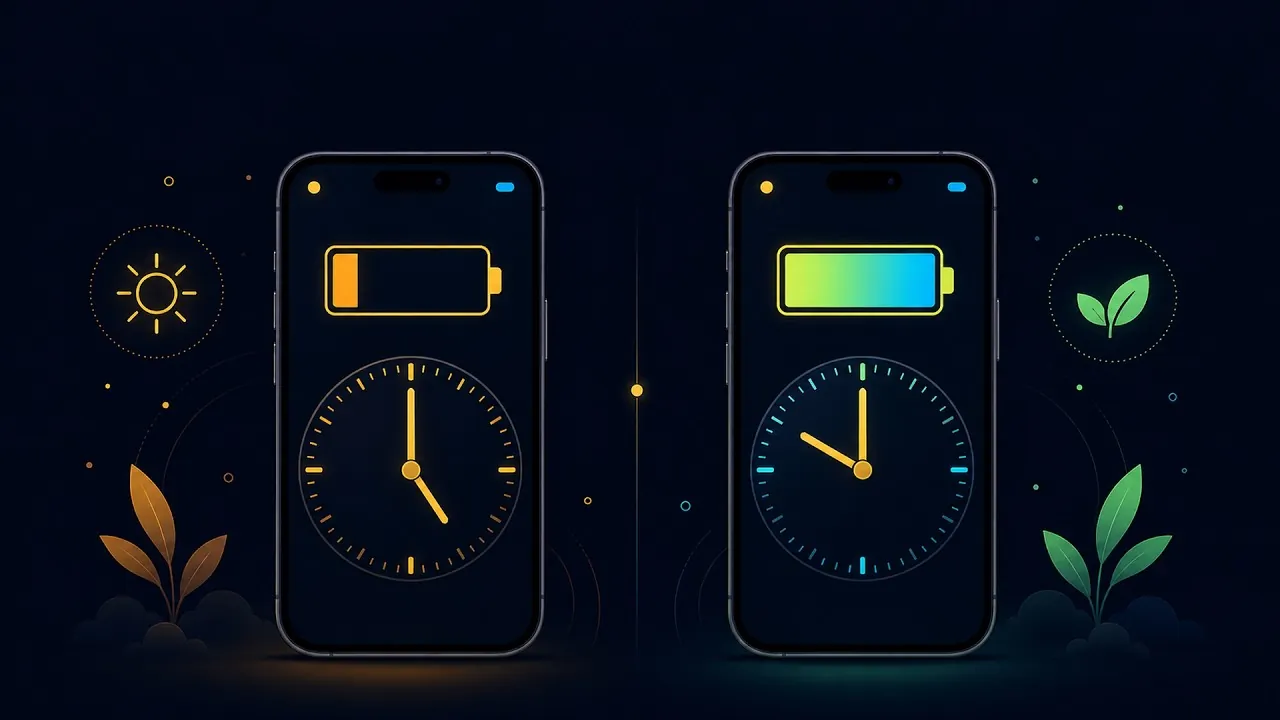
To recap: brightness below seventy percent, background refresh off except for essentials, location set to while using, and low power mode at thirty percent. These four settings together represent two to three extra hours of battery life under standard daily use. No new phone needed, no power bank required. Sixty seconds of settings, done once, and that's it.
This advice is general information and does not replace a professional's opinion. When in doubt (health, electricity, chemicals), ask a specialist.
Sources
Want more tips like this one?
Subscribe to the channel